Algorithmic Art Tutorial
Algorithmic Art is a creative coding technique that uses code, simple maths and logic to create engaging static or dynamic images. p5.js, the language it was originally designed for, is the best suited. As a JavaScript library, it can be used in the browser without downloading software. Processing.org has created a brilliant web editor that lets you code in your browser and see the results instantly. Simply type your code and it’s translated into a canvas within the web editor. Click the link or image to download the PDF.
Programme of Study
Module A shapes and loops
Module B colour and movement
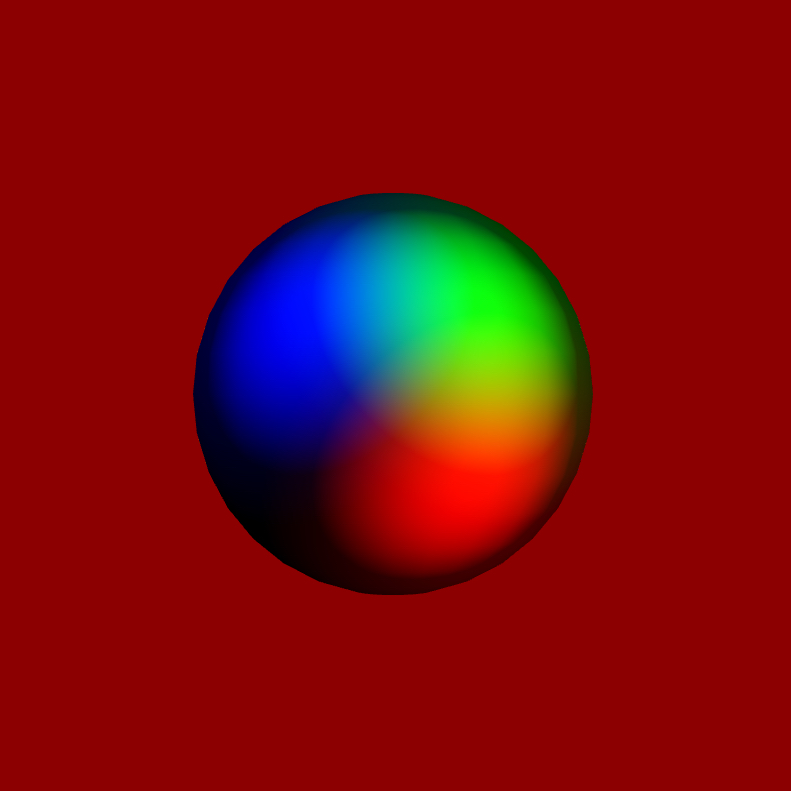
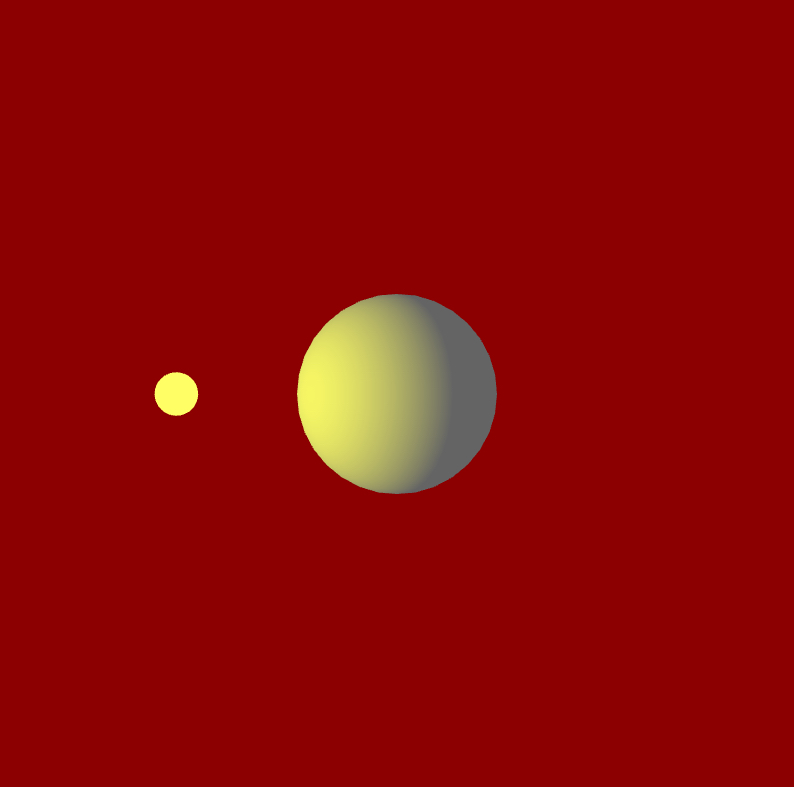
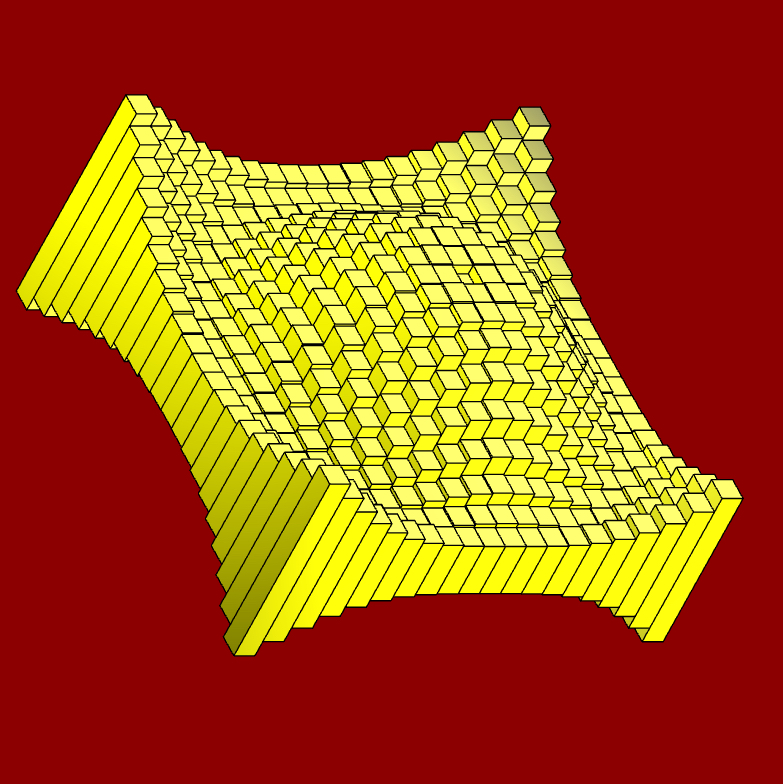
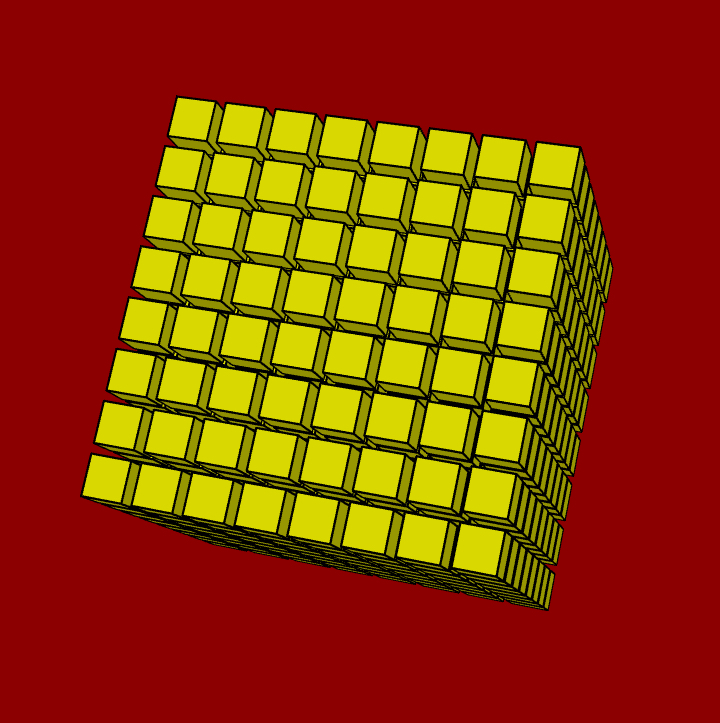
Module C 3D shapes and light
Module D classes and arrays
Module E particles and perlin
Module F sound and vision (work in progress)
Table of Contents
- Algorithmic Art Tutorial
- Programme of Study
- Table of Contents
- Module A
- Module B
- Module B Unit #1 bounce and rotate
- Module B Unit #2 orbit and oscillate
- Module B Unit #3 text
- Module B Unit #4 RGB slider
- Module B Unit #5 HSB colours
- Module B Unit #6 colour chart and picker
- Module B Unit #7 arrays
- Module B Unit #8 irregular shapes
- Module B Unit #9 arcs and mapping
- Module B Unit #10 phyllotaxis
- Module C
- Module D
- Module E
- Module F
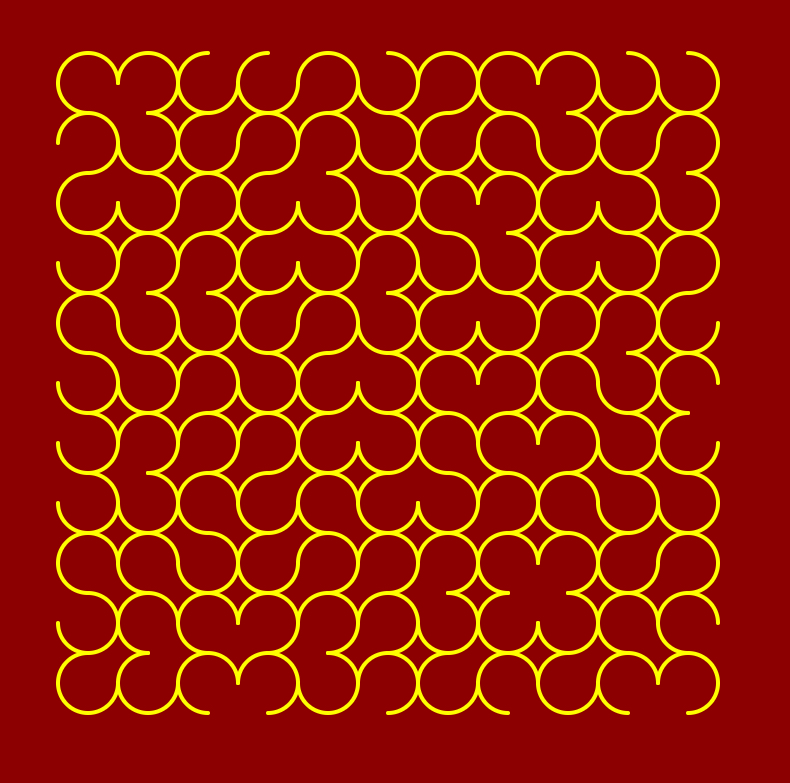
Module A
Module A introduces you to various shapes at your disposal and also to keep concepts that are key to coding in general.





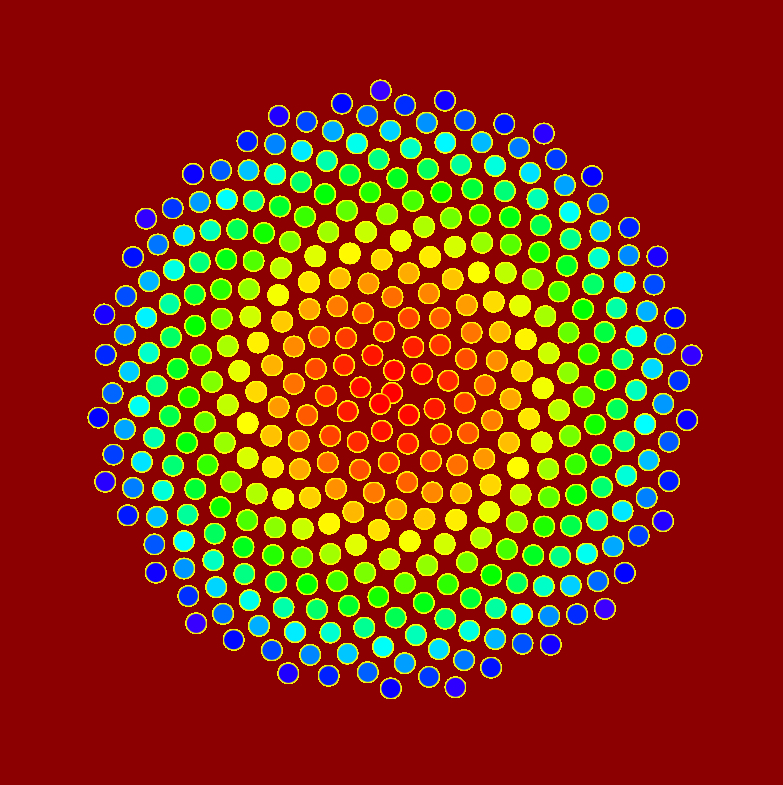
Module B
Module B adding to the previous module we will now explore movement and further explore colour



Module C
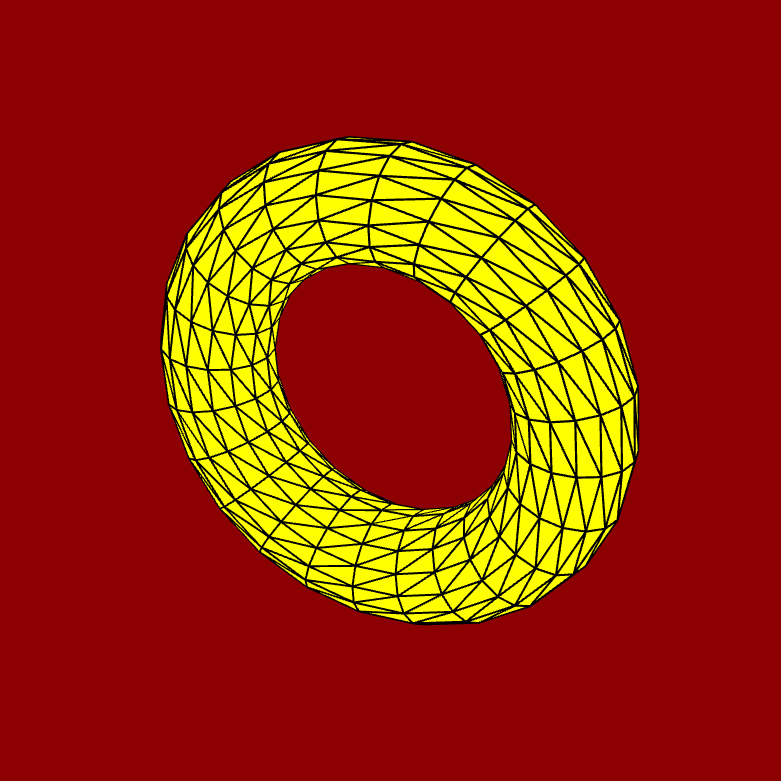
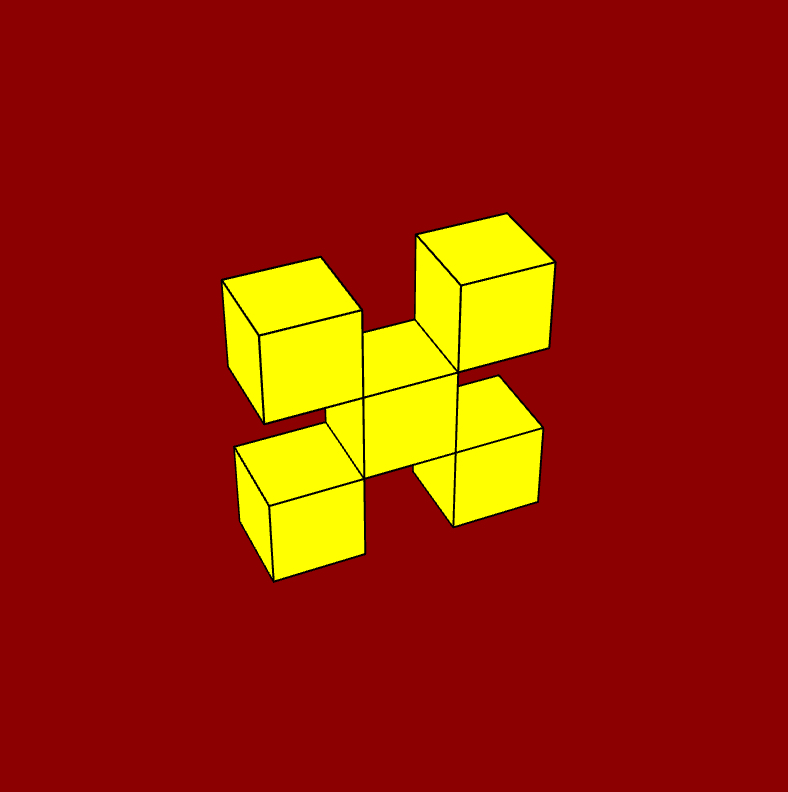
Module C now we move from 2D shapes to the wonderful world of 3D shapes

Module D
Module D introduction to using classes in your coding and more on arrays
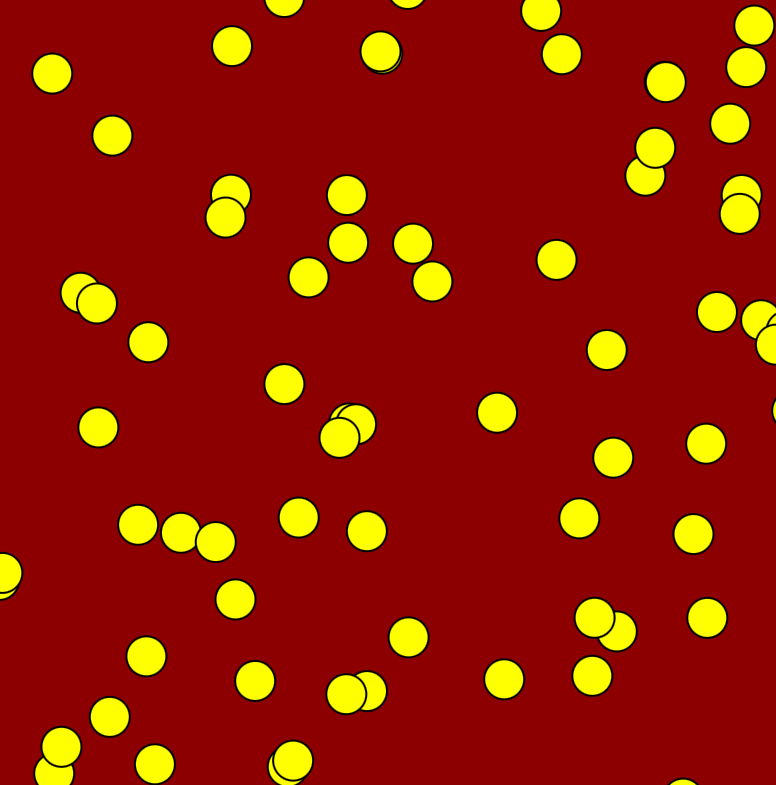

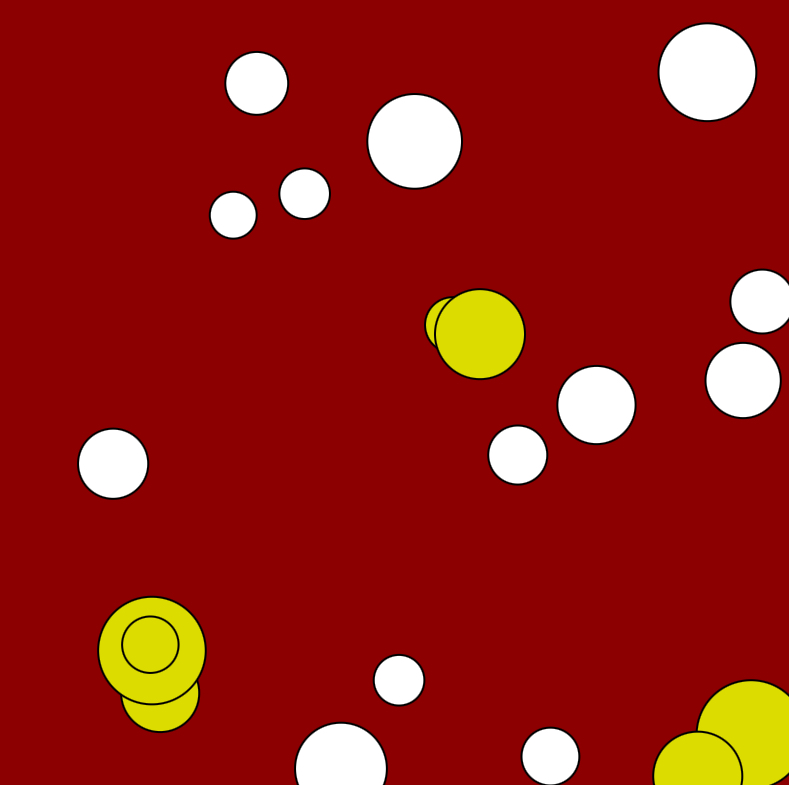

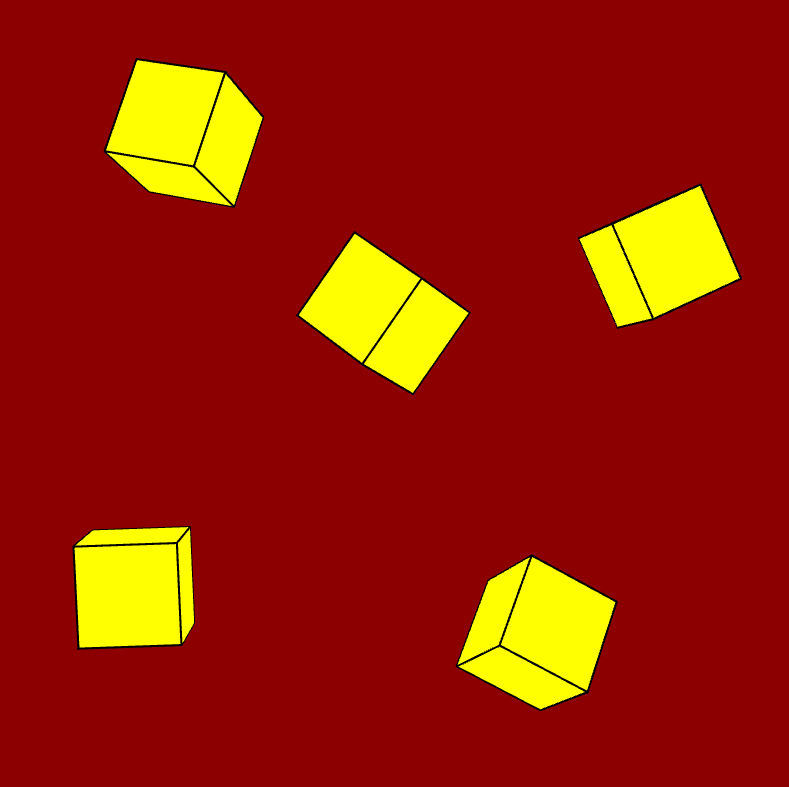
Module E
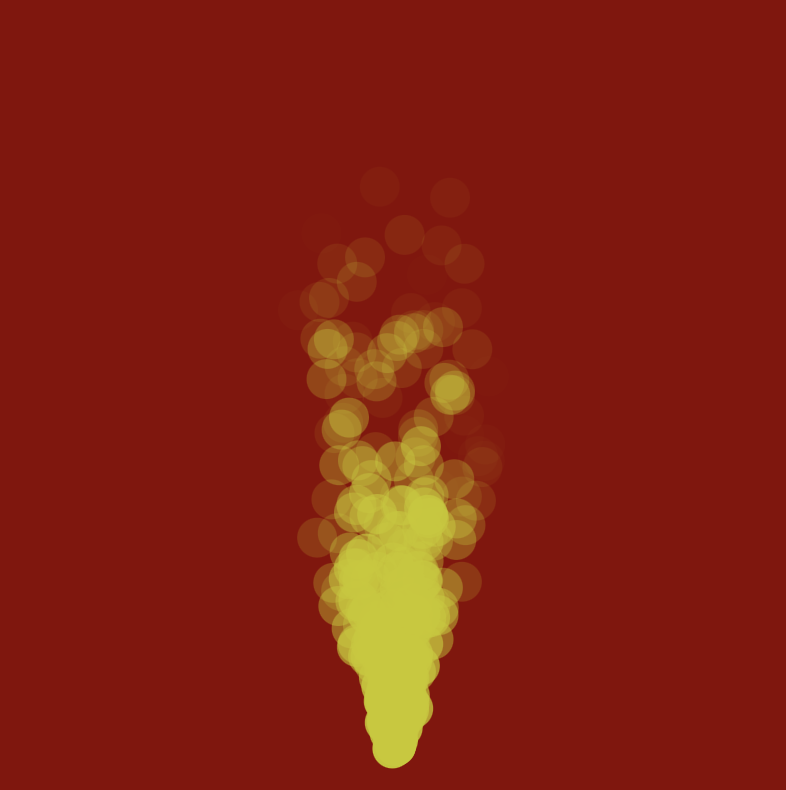
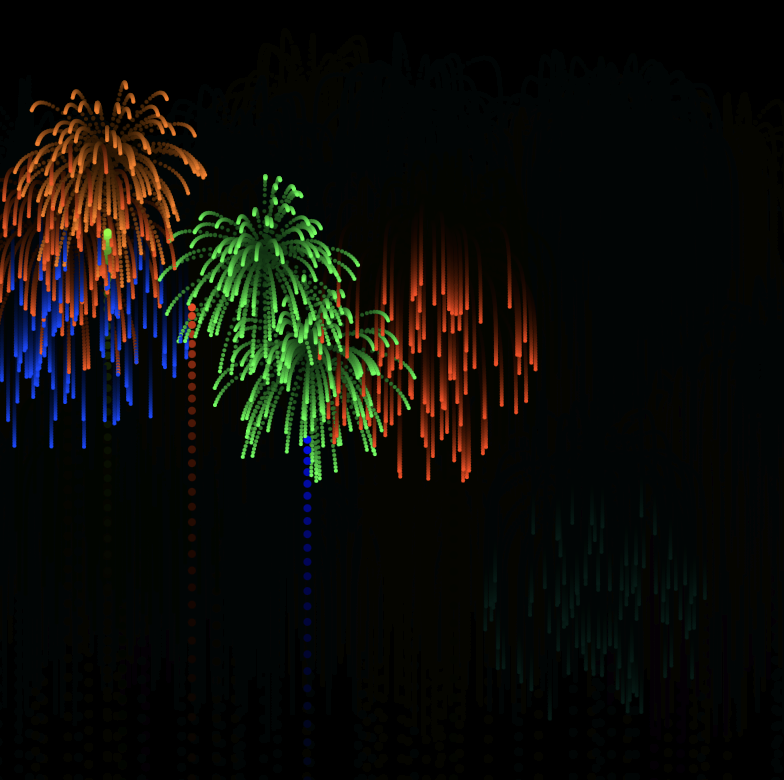
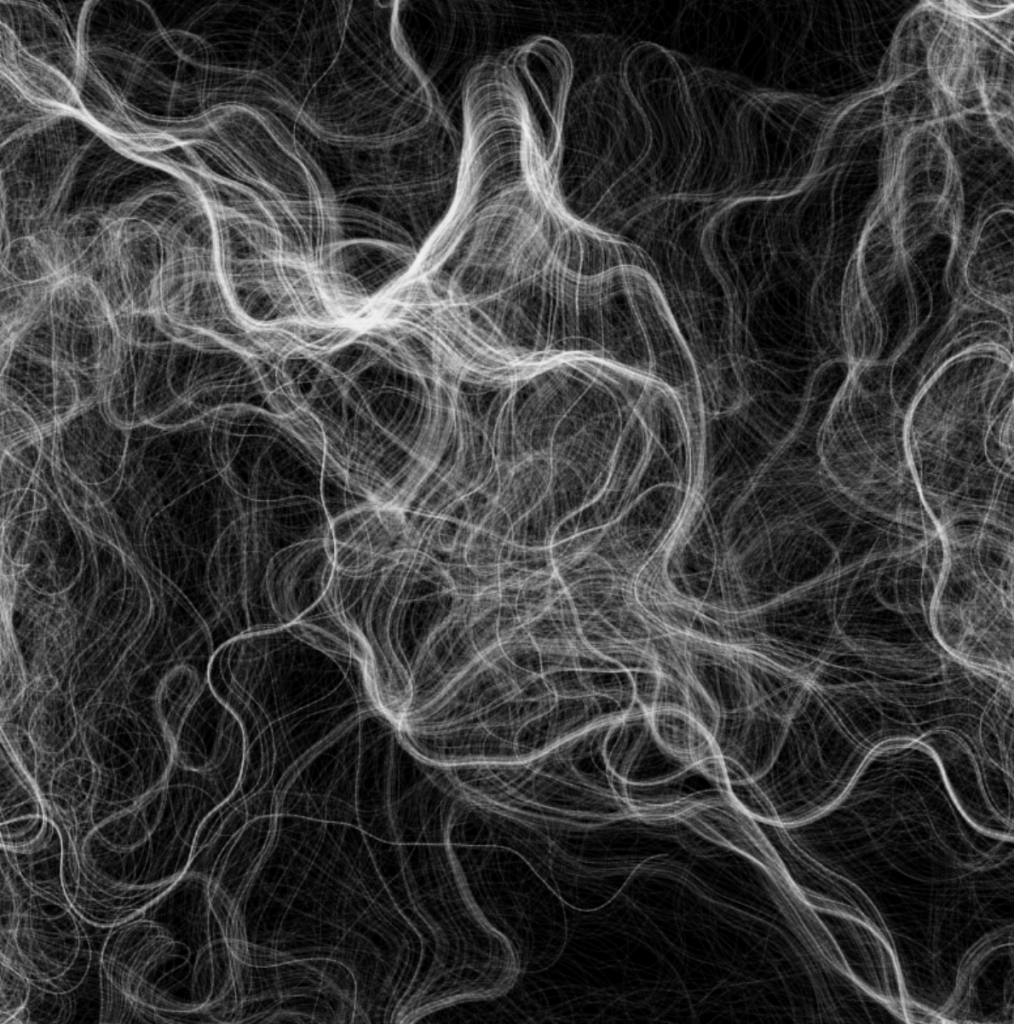
Module E This module covers two important concepts for art, they are particles and perlin noise



Module F
Module F This module mostly explores using videos, images and sound files. Currently a work in PROGRESS!

Module F Unit #3 video capture (in progress)
Some interesting effects using the webcam.
Module F Unit #4 image files (in progress)
Looking at saving (and loading) images and videos