Robotics and AI Tutorial

This section introduces the microcontroller. Specifically the Arduino Nano 33 BLE. It is small and yet powerful enough to be used with AI or Machine Learning models. There are four modules take you step by step in using the Arduino Nano 33 BLE, connecting it to p5.js, then linking it a ml5.js model using its internal accelerometer before finally building a Artificial Neural Network inside the microcontroller itself.
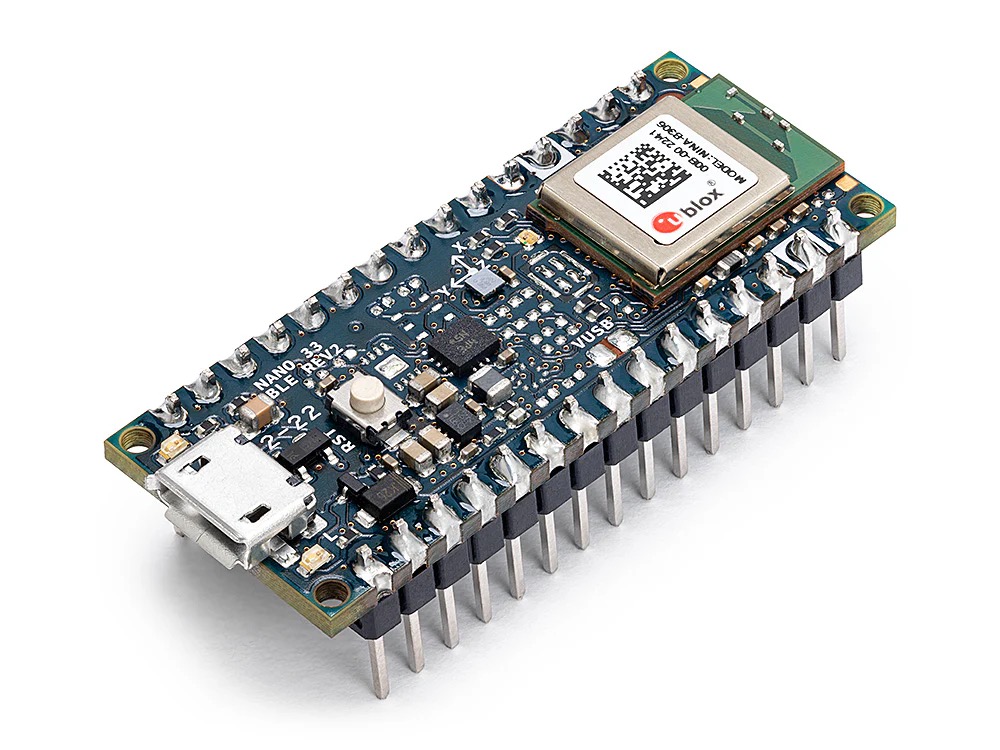
Module A: Arduino Nano 33 BLE basics

Module B: Arduino and p5.js

Module C: Arduino and ml5.js

Module D: Arduino and Artificial Neural Network

Module A

Module A covers the basic functions of coding the Arduino Nano 33 BLE. if you are already familiar with coding in the Arduino ecosystem then you can probably skip this part. Click on the links below to download the PDFs.

Module A Unit #1 Hardware

What hardware are you going to need to complete these modules and units of work? There are a number of components that you will need, the main one is the Arduino Nano 33 BLE itself. This is the micro-controller you will be using. there are other components as well.

Module A Unit #2 Software

To upload our sketches to our Arduino Nano 33 BLE microcontroller we need to use Arduino’s software. This uses the C/C++ coding language and is very similar in structure to p5.js, which is helpful.

Module A Unit #3 Blinking

The best place to start is to get the built-in LED to blink. This is what is called the Hello World! of coding an Arduino board. This may seem very simple but it introduces you to the basics of creating the sketch, uploading it and running the code on the Arduino board.

Module A Unit #4 Functions 

Functions are key part of coding and in this unit we will explore what they and how to use them. There are some clear similarities as to how functions are used in p5.js, so, not a steep learning cure.

Module A Unit #5 Random and Arrays

Being able to generate random numbers is useful in coding robotics and there are clever ways to generate random numbers. Arrays are powerful tools to storing and retrieving data, this unit explores how they are used with C/C++.

Module A Unit #6 Boolean

Boolean logic uses, well, logic, logic gates to be specific. The main boolean gates covered are the simplest ones AND and OR, with these you can do a lot.

Module A Unit #7 Serial Communication

The Arduino Nano 33 BLE can communicate with the computer through the USB serial connection. This is useful for sending data or information back and forth between the board and the computer.

Module A Unit #8 RGB LED

The Arduino Nano 33 BLE has two built-in LEDs. the first one we have already covered. Here is the second one and has three colours, Red, Green, and Blue. Although you cannot mix them to make all the colours in between. It is useful for other reasons.

Module A Unit #9 Button

Although the board has a button we cannot use it except to reset the board. Here we add a button component using the breadboard. It is a tactile button which means it makes a connection when pressed and not when released.

Module A Unit #10 Accelerometer

The Arduino Nano 33 BLE has a built-in module that can measure the acceleration of its movement. This is called an accelerometer.

Module A Unit #11 Gyroscope

The Arduino Nano 33 BLE has a built-in module that can measure the rotational (angular) acceleration of its movement. This is called a gyroscope.

Module A Unit #12 Magnetometer

The Arduino Nano 33 BLE has a built-in module that can measure the magnetic field around the board. This is called a magnetometer.

Module B

Module B in this module we can now connect a p5.js sketch with our Arduino Nano 33 BLE and have some fun. Click on the links below to download the PDFs.
Module B Introduction to 3D Shapes

Before beginning this module I recommend working through this unit that introduces 3D shapes in p5.js. It is not essential but we will be using this in the final unit of this module.

Module B Unit #1 p5.js and LED

Here you are going to connect the Arduino Nano 33 BLE with a p5.js sketch. To just switch the LED on and off by clicking the canvas.

Module B Unit #2 p5.js and LED Slider

Rather than just switching the LED on and off we will use a slider in p5.js and control the brightness of the LED.

Module B Unit #3 p5.js and RGB LED

Using p5.js we will select the appropriate colour from the RGB LED as we hover over that colour on the canvas.

Module B Unit #4 p5.js and a Button

Attaching a button to the Arduino Nano 33 BLE and then control the colour of a circle as the button is pressed.

Module B Unit #5 p5.js and the Accelerometer

Using the built-in IMU and the 3D graphics of p5.js we can simulate the movements of the board on the canvas. you need to quickly run through the coding snippets for p5.js 3D first (not absolutely essential).

Module C

Module C we will first collect real data from the accelerometer, then reformat it and add the data to the model to train and predict the movement. Click on the links below to download the PDFs.
Module C Unit #1 Collecting Data

As well as connecting with a p5.js sketch we can also connect with the ml5.js machine learning library. First however we need to collect the data for four movements. this takes you step by step through the process.

Module C Unit #2 Predicting Accelerometer

Once we have the data we can train it, produce the model and test it out by seeing how well it predicts the movement when we move the board.

Module D

Module D this is an advancement on what we have done already, here we are going to put a neural network into the Arduino Nano 33 BLE, train it and predict. This is a very simple example but demonstrates what can be done even in a microcontroller.  Click on the links below to download the PDFs.

Module D Unit #1 Truth Table

Adding two buttons and using OR and XOR truth tables to hard code both conditions.

Module D Unit #2 Neural Network

Instead of hard coding you are going to create a small neural network inside the Arduino, train it and predict the XOR truth table of two buttons.